
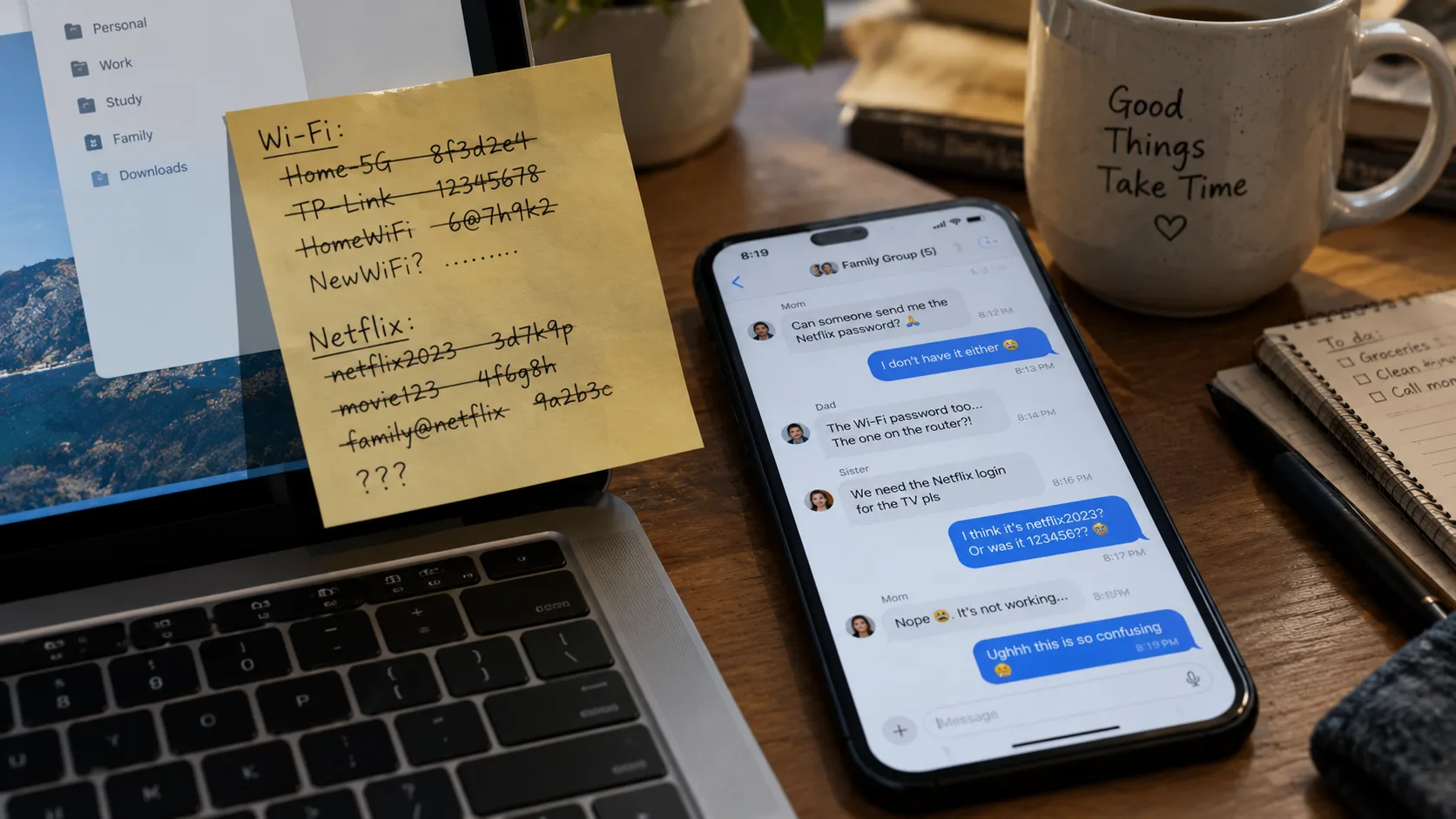
Most family password systems die within two weeks. Not because the tools are bad, but because the system demands more attention than anyone is willing to give it after the initial setup.
You text the Netflix password. Someone changes the Wi-Fi. The grocery app login lives in three different group chats. One person keeps a notes app. Another still uses the same password they created in 2014. The result is friction, not security.
A family password system only works if people will actually open it when they need a login—not when they feel motivated to be organized. This guide focuses on that reality.
Give every adult their own private vault, create one or two shared vaults for household accounts only, and stop trying to share everything. For most Apple households the free built-in solution is enough. For mixed devices or larger families, a paid family plan from 1Password or Bitwarden removes more daily friction than it creates.
Why Most Family Password Systems Fail
They fail for three predictable reasons:
Everything gets shared: Private email, banking, and work accounts end up in the same place as the Disney+ login. People start treating the system as optional.
One master password rules them all: When one person is the gatekeeper, everyone else reverts to texting.
Setup is treated as a one-time project: No recovery path, no clear ownership of shared accounts, and no agreement about what belongs in the shared space.
The goal is not perfect security. The goal is a system that reduces the number of times someone has to ask “What’s the password?” while keeping personal accounts personal.
What Actually Matters for a Family System
Before choosing a tool, decide on three rules:
Each adult gets a private vault that no one else can see by default.
Shared vaults contain only accounts that multiple people genuinely need (streaming, Wi-Fi, utility portals, shared shopping accounts).
Someone is responsible for recovery. If one person forgets their master password, the household should not lose access to everything.
Everything else is secondary.
Choose Your Approach
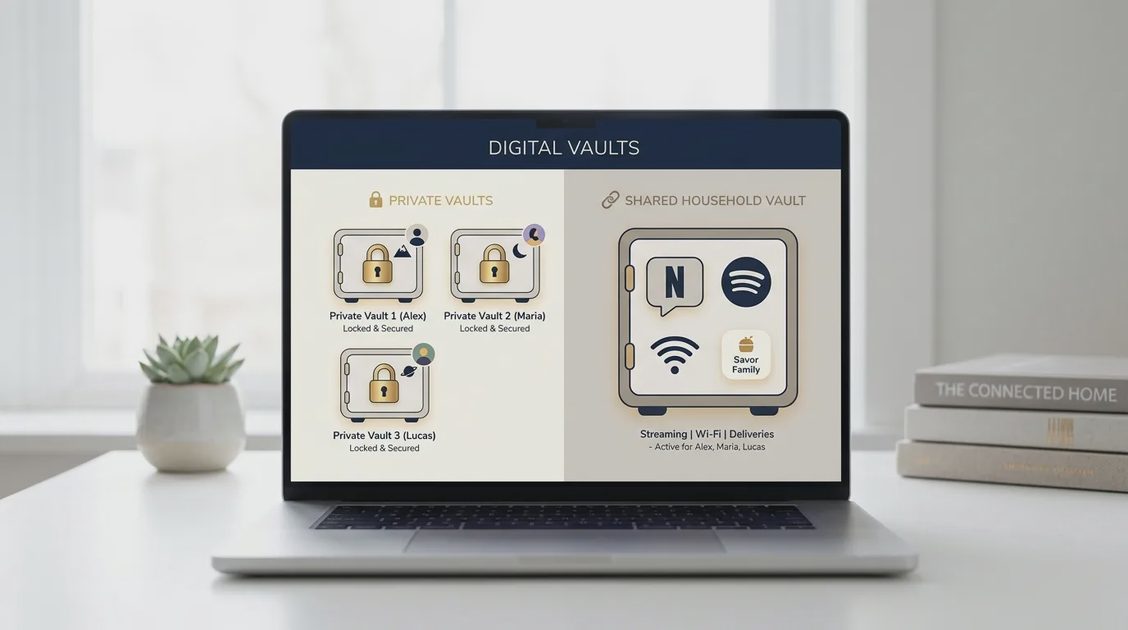
Option 1: Apple Passwords (Shared Groups) — Best for all-Apple households
Available on iOS 17 / iPadOS 17 / macOS Sonoma and later. Free, built-in, and already on the devices most family members use. You create a Shared Group, invite people who are in your Contacts, and move specific passwords into that group. Everyone in the group can view, add, and update those items.
Limitations: Everyone needs a recent Apple device and iCloud Keychain enabled. No meaningful support for Android or Windows. Not ideal if grandparents or older teens use other platforms.
Option 2: Dedicated Family Password Manager — Best for mixed devices or more control
1Password Families (around 4.49–4.49–5.99/month billed annually for up to 5 members) and Bitwarden Families ($3.99/month billed annually for up to 6 members) are the two clearest options. Both give every member a private vault plus shared collections. 1Password feels more polished with stronger family recovery; Bitwarden is open-source and usually the better value.
Quick Comparison: Choosing Your Family Tool
Feature / Need | Apple Passwords (Shared Groups) | 1Password / Bitwarden Families | Text Messages / Notes App |
Cost | Free (built-in) | Paid (~$3.33 – $4.99 / month) | Free |
Platform Support | Apple only (iOS, iPadOS, macOS) | Cross-platform (iOS, Android, Mac, PC) | Any |
Private Vaults | Yes (Personal iCloud) | Yes (Fully isolated per user) | No |
Shared Vaults | Yes (Shared Groups) | Yes (Dedicated shared vaults) | No (Scattered) |
Security Risk | Low | Low | High |
Best For | All-Apple households | Mixed-device families | Nobody (Avoid) |
Step-by-Step: Build the System People Will Use
1. Inventory only what needs to be shared
Make a short list. Typical household items:
Streaming services
Home Wi-Fi (main and guest)
Shared shopping or delivery accounts
Utility or home portal logins that more than one adult needs
Leave out personal email, primary banking, work accounts, and individual social media.
2. Set up individual accounts first
Whether you use Apple Passwords or a paid manager, every adult should create and control their own account and master password (or device passcode + biometrics). Do not share master passwords.
3. Create the shared space
Apple: Create a Shared Group, name it something obvious (Household or Family Shared), add people, then move the relevant passwords into it.
1Password / Bitwarden: Use the built-in Shared / Family vault or create a dedicated collection. Invite family members so each person joins with their own credentials.
4. Move items deliberately
Start with five to ten shared logins. Do not import everything and sort later. Sorting later rarely happens.
5. Test on real devices
Have each person open the shared item on their phone and sign into one service. If the flow feels clumsy, fix it now.
6. Decide recovery and ownership
Designate one other adult who can help recover an account if needed. Store emergency kits or recovery information in a place both adults can reach (not only on one person’s phone).
Rules That Keep the System Alive
Shared vaults are for household accounts only. Private stays private.
Update immediately. When a shared password changes, update it in the vault right away. Do not text the new one “just this once.”
Review periodically. Check the shared vault every few months to remove old services and people who no longer need access.
Keep kids limited. Kids and teens get access only to the accounts they actually use. Do not give them the parents-only vault.
Use service-level sharing first. Prefer service-level family sharing (Netflix profiles, Apple Family Sharing, Google Family Group) over sharing the master login when the service supports it.
Who This Works For
Households tired of password texts and sticky notes
Families with two or more adults who share streaming and home accounts
People willing to spend 30–60 minutes on setup and then mostly leave it alone
Who Should Skip It (or Simplify Further)
Single-person households
Extremely mixed or frequently changing households where people come and go
Anyone who refuses to use a password manager at all — in that case, focus only on unique passwords for email and banking and accept more friction elsewhere
Common Mistakes
Putting banking and email into the family vault “for convenience”
Making one person the permanent password distributor
Choosing a tool no one else will open on their phone
Skipping the recovery conversation until someone is locked out
FAQ
Is it safe to share passwords with family?
Yes, when you use a proper shared vault or Apple Shared Group instead of text messages or notes. Keep highly sensitive accounts private.
Do we need a paid password manager?
Not if everyone is on recent Apple devices and the free Shared Groups feature covers your needs. Mixed platforms or a desire for stronger recovery usually justify the low monthly cost of 1Password or Bitwarden Families.
What about kids?
Give them access only to the accounts they use. Most family plans let you control which vaults or collections each person can see.
A family password system succeeds when it becomes the path of least resistance. Make the shared space small, keep private things private, and choose the tool your household will actually open. Everything else is optional. Make the technology earn its place.