
A new phone or tablet usually arrives with a familiar routine: sign in, transfer your photos, install your favorite apps, and get everything working.
Privacy settings rarely receive the same attention.
That's understandable. Most people want their new device to feel like their old one as quickly as possible. Nobody buys a phone because they're excited about reviewing permissions and account recovery options.
But a little preparation can prevent some frustrating problems later.
An app may have access to your location when it doesn't need it. Family photographs might be shared more widely than intended. An old device could remain connected to an account after you've stopped using it.
And a child using a family tablet may have access to information or purchases that were never meant to be shared.
Good mobile phone privacy doesn't require turning off every feature or becoming a security expert.
It requires knowing what information your devices collect, who can access it, and which settings are worth reviewing.
This checklist focuses on practical improvements for new phones, tablets, and shared family accounts.
1. Start With the Account, Not the Device
Before changing individual privacy settings, check the account connected to your phone or tablet.
For an iPhone or iPad, that's generally your Apple Account. For most Android devices, it's your Google Account, although some manufacturers also use additional accounts.
These accounts can connect email, photographs, backups, purchases, location services, and other personal information.
If someone gains unauthorized access to the account, the consequences may extend beyond one device.
Check your account security
Start with the basics:
Use a strong, unique account password.
Enable two-factor authentication where available.
Confirm that recovery phone numbers and email addresses are current.
Review devices signed in to the account.
Remove devices you no longer recognize or use.
Check whether recovery methods depend on an old phone number or email address.
Don't remove an unfamiliar-looking device immediately if you aren't sure what it is. First check its details and whether it belongs to someone in your household.
A good account setup should make unauthorized access difficult without making legitimate recovery impossible.
Avoid sharing one personal account across the family
Sharing a single account may seem convenient, particularly when setting up devices for children.
But it can create problems with photographs, messages, contacts, purchases, backups, and personal information.
Where supported, use individual accounts with appropriate family-sharing features instead.
This makes it easier to manage permissions while keeping personal data separate.
2. Review App Permissions Before You Forget
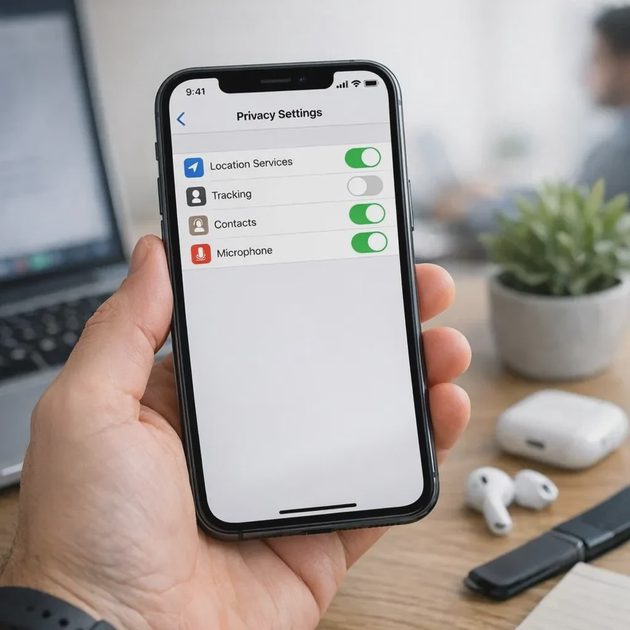
Apps frequently request access to features such as your camera, microphone, contacts, photographs, and location.
Some requests are reasonable.
A navigation app needs location information to provide directions. A video-calling app needs camera and microphone access during a call.
But permission requests should match the job an app performs.
A simple rule works well:
Give an app the access it needs, when it needs it—not every permission it asks for.
Check these permissions first
Permission | What to consider |
|---|---|
Location | Does the app need your location all the time, or only while you're using it? |
Camera | Does the app have a legitimate reason to use the camera? |
Microphone | Is microphone access necessary for its features? |
Photos | Can you share selected photographs instead of the entire library? |
Contacts | Does the app really need access to your address book? |
Bluetooth / nearby devices | Is nearby-device access necessary for the feature you're using? |
Background activity | Does the app need to keep working when you're not actively using it? |
The available choices vary by operating system, version, and application.
On current iPhones and iPads, many controls are grouped under Settings → Privacy & Security.
On Android, look for Privacy, Security & Privacy, or Permission Manager in Settings, depending on the device.
If the menu differs, use the Settings search feature.
Pay special attention to location access
Location data can reveal sensitive patterns about your daily life.
Review apps that have permission to access your location, especially in the background.
For applications that only need location during active use, a more limited permission may be appropriate.
Some devices also offer controls for approximate versus precise location.
Use the least detailed option that still allows the feature to work properly.
3. Understand iPhone Privacy Warnings Before Dismissing Them
An iPhone privacy warning can refer to several different situations.
For example, you may see a privacy-related notice about a Wi-Fi network, an application permission, or a security setting.
These warnings do not all mean the same thing.
What does a Wi-Fi Privacy Warning mean?
An iPhone may display a Privacy Warning beneath a Wi-Fi network in Settings.
Depending on the circumstances and software version, this can relate to privacy protections such as private Wi-Fi addressing or how the network handles certain privacy-related traffic.
It does not automatically mean someone has hacked your phone.
If you see the warning:
Open the details for the affected Wi-Fi network.
Read the specific warning text.
Check whether privacy-related Wi-Fi settings are enabled and appropriate for that network.
Make sure your device software is up to date.
If it's your home network, review the router's security configuration and available updates.
Avoid changing several settings blindly just to make the warning disappear.
The correct response depends on the actual message and network configuration.
For current device-specific guidance, consult Apple's official support documentation.
What about camera and microphone indicators?
On supported iPhones, colored indicators can appear when an app uses the camera or microphone.
These are visibility features, not necessarily evidence of malicious activity.
If an indicator appears unexpectedly, check which app recently accessed the relevant feature and review its permissions.
If the activity doesn't make sense, close the app, revoke unnecessary access, and investigate further.
The useful habit is to understand the signal rather than panic or ignore it.
4. Decide What Should Be Backed Up and Shared

Cloud backups and synchronization are convenient.
They can also make it less obvious where personal information is stored and which devices can access it.
When setting up a new phone or tablet, review the services connected to your account.
Check photo synchronization
Photographs may synchronize across devices signed in to the same account.
That can be useful for backup and access, but it may create surprises when devices are shared.
Check which photo libraries are synchronized and whether shared albums or libraries include the intended people.
Remember that synchronization and backup are not always the same thing.
Deleting a synchronized photograph on one device may also remove it from other connected devices.
Before deleting large amounts of personal data, confirm that important files have a separate, recoverable backup.
Review shared documents and storage
Check cloud folders, shared documents, and collaborative workspaces.
Look for links that allow broader access than intended.
Where possible, restrict sensitive documents to specific people rather than using unrestricted sharing links.
This is especially important for family records, identification documents, financial information, and private correspondence.
Understand your backup settings
A useful backup plan should answer three questions:
What information is being backed up?
Where is the backup stored?
Could you recover it if your phone were lost or damaged?
Review backup settings after moving to a new device.
Don't assume that every application or file is automatically included.
5. Set Up Family Accounts With Clear Boundaries
A family tablet can be a shared resource without requiring everyone to share the same digital identity.
Where supported, create separate accounts or user profiles for different family members.
For children, use the operating system's family-management tools to review age-appropriate access, purchases, communication settings, and content restrictions.
Apple and Google offer family-management features, although the available controls differ by device, region, and account type.
Keep personal and family information separate
Think carefully about which information genuinely needs to be shared.
A family calendar may benefit everyone.
A shared shopping list can be useful.
But personal email, private photographs, passwords, and individual browsing information usually deserve separate access.
The objective isn't to make family technology complicated.
It's to prevent accidental exposure and confusion.
Talk about location sharing
Location sharing can help family members coordinate or respond to emergencies.
But it also deserves a clear conversation.
Who can see whose location?
When is sharing appropriate?
How can someone review or stop sharing?
For children, decisions should account for age, safety, and family circumstances.
Privacy works better when people understand the rules instead of discovering them accidentally.
6. Secure the Lock Screen and Device Access
Your phone contains a great deal of personal information, and the lock screen is one of its most important boundaries.
Use a strong device passcode or password.
Biometric unlocking, such as fingerprint or facial recognition, can provide convenient access where supported, but the underlying passcode still matters.
Avoid easy-to-guess codes and sharing them unnecessarily.
Review lock-screen notifications
Some phones display message previews and other personal information while locked.
That can be convenient, but it may expose sensitive details to someone nearby.
Consider hiding notification content until the device is unlocked.
You can usually adjust this behavior in notification or lock-screen settings.
Enable device-finding features
Features such as Apple's Find My and Google's device-finding services can help locate, secure, or erase a lost device when configured and supported.
Check that the appropriate feature is enabled and that you understand how to access it from another device.
Some capabilities depend on connectivity, account status, and device configuration.
Don't wait until a phone disappears to learn whether the feature was active.
7. Check Browser and Tracking Settings
Your browser is another important part of mobile phone privacy.
Review its privacy and security settings, including available tracking protections, site permissions, and saved information.
Consider whether websites need persistent access to your location, camera, microphone, or notifications.
Clear permissions that are no longer useful.
Some platforms also provide controls over cross-app tracking requests or advertising personalization.
These settings can reduce certain forms of tracking, but they do not make online activity completely anonymous.
Privacy is about reducing unnecessary exposure, not achieving an unrealistic promise of total invisibility.
8. Remove Unnecessary Apps and Old Device Access
A new phone is a good opportunity to reconsider what gets transferred from the old one.
Restoring every application may be convenient, but it can also carry years of unused software into a fresh device.
Review your installed apps.
Remove applications you no longer need, particularly those you don't recognize or that no longer receive trustworthy maintenance.
Before uninstalling an app, check whether it contains information that isn't backed up elsewhere.
Also review connected devices and active sessions in important accounts.
An old tablet, sold phone, or unused computer may still appear in your account's device list.
Remove access when appropriate, after confirming that the device is no longer needed for authentication or recovery.
9. Prepare Old Devices Before Selling or Giving Them Away
Moving to a new phone isn't complete until you've dealt with the old one.
Before selling, donating, recycling, or handing a device to another family member, make sure important information has been transferred or backed up.
Then follow the manufacturer's official procedure for signing out, disabling relevant device-protection locks where required, and erasing personal data.
Don't assume that manually deleting photographs and applications is equivalent to properly erasing the device.
Also consider removable storage, SIM cards, eSIM transfers, and any connected accessories.
The exact steps depend on the device and operating system.
For this task, manufacturer-specific instructions are more reliable than a generic reset checklist.
10. The Family Mobile Privacy Checklist
Use this checklist when setting up a new phone, tablet, or family account.
Accounts and security
Use a strong, unique password for the primary device account.
Enable two-factor authentication where available.
Confirm recovery contact information.
Review signed-in devices.
Use individual family accounts where practical.
Apps and permissions
Review location access.
Check camera and microphone permissions.
Limit photo-library access where appropriate.
Review contacts and nearby-device permissions.
Remove unnecessary applications.
Privacy and sharing
Review cloud photo synchronization.
Check shared albums, folders, and documents.
Confirm backup coverage.
Review location sharing.
Check browser and tracking controls.
Device protection
Set a strong device passcode.
Review lock-screen notification previews.
Enable supported device-finding features.
Install available security updates.
Review privacy or security warnings rather than dismissing them automatically.
Old devices
Confirm important data has transferred.
Check backups before erasing anything.
Remove old account access when appropriate.
Follow official device-erasure instructions.
Handle SIM cards, eSIM transfers, and removable storage appropriately.
You don't need to finish every item in one sitting.
Start with account security, app permissions, and backups. Then work through family sharing and old-device cleanup.
Frequently Asked Questions
How can I improve mobile phone privacy without installing another app?
Start with built-in settings. Review account security, application permissions, location access, lock-screen previews, software updates, and cloud sharing. Many useful privacy improvements don't require additional software.
Does an iPhone Privacy Warning mean my phone has been hacked?
Not necessarily. A Wi-Fi Privacy Warning can relate to network privacy settings rather than a device compromise. Read the specific warning and check the relevant network configuration before drawing conclusions.
Should family members share the same Apple or Google account?
Individual accounts with supported family-sharing features are generally a better approach. They help keep personal information separate while allowing appropriate shared purchases, calendars, or parental controls.
Is turning off location services completely necessary?
Not for everyone. Location access supports useful features such as navigation and device finding. A more practical approach is to review which apps need location, when they need it, and whether precise access is necessary.
Should I delete all apps I don't regularly use?
Not automatically. Some applications serve occasional but important purposes. Review their usefulness, permissions, maintenance, and stored data before deciding whether to remove them.
Privacy Should Be a Routine, Not a Weekend Project
A new phone or tablet is a useful reminder to review your digital boundaries.
But privacy doesn't need to become another complicated system that demands constant attention.
Start with the settings that matter most.
Secure the account. Limit unnecessary permissions. Understand what's synchronized and shared. Give family members appropriate access. Prepare old devices carefully before passing them on.
Then revisit those decisions occasionally, especially after installing new applications, changing devices, or adding family accounts.
The goal isn't to eliminate every possible risk.
It's to make reasonable privacy choices without making everyday technology harder to use.
Good privacy settings should quietly protect your digital life—not become another thing you have to manage every day.