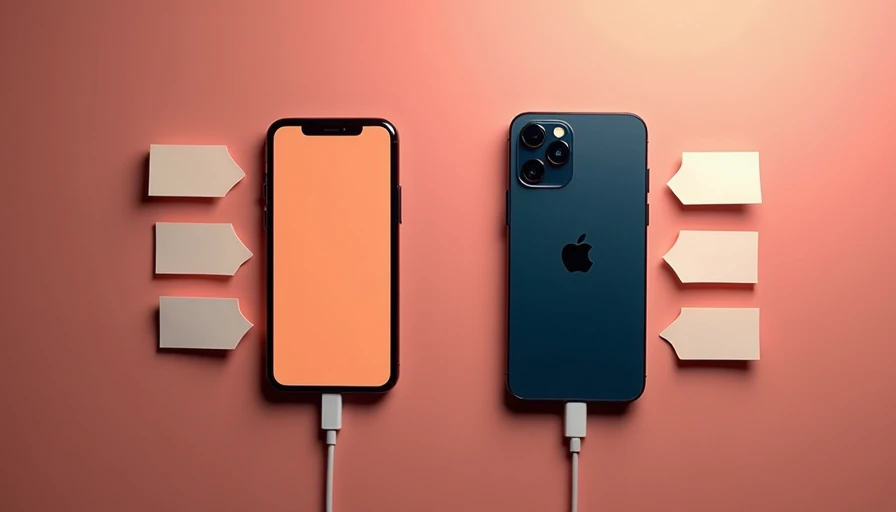
When you transfer text messages to new phone hardware, the goal is not simply to see a few recent conversations. You want years of family plans, work details, delivery updates, two-factor codes, and sentimental messages to arrive intact. The easiest path depends on whether you are moving from iPhone to iPhone, Android to Android, or switching between platforms. A little preparation prevents the most common problems: missing attachments, incomplete backups, and an old phone being erased too soon.
Before you start the transfer
Keep both phones charged, unlocked, and connected to Wi-Fi. A cable is often faster and more dependable than a wireless transfer, especially when your message history includes videos or thousands of photos. You should also update both phones before beginning. An older operating system can create compatibility problems with the transfer assistant built into the new device.
Do not trade in, factory-reset, or give away the old phone yet. Open several conversations and confirm that older messages, photos, voice notes, and group chats are present on the new phone. If the transfer stalls, your original device is the safety net.
Check available storage as well. A phone with 128GB of space can still run out if it is already crowded with photos, podcasts, and downloaded video. Messages themselves are usually modest, but attachments can be surprisingly large. Delete temporary downloads from the new phone if necessary, not the original history you are trying to preserve.
If you use an authenticator app, banking app, or work messaging system, make a separate migration plan. Moving text messages does not automatically move every account, password, or security credential.
Moving messages between iPhones
Apple’s Quick Start is usually the cleanest way to transfer text messages to new phone hardware when both devices are iPhones. Place the phones near each other, turn on the new iPhone, and follow the setup prompt. You can transfer directly from the old phone or restore from an iCloud backup. Direct device-to-device transfer generally avoids waiting for a large cloud backup to upload first.
Make sure Messages in iCloud is enabled if you rely on cloud synchronization. On the old iPhone, open Settings, select your Apple Account, choose iCloud, and check the Messages setting. If messages are stored in iCloud, the new phone may continue downloading conversations after setup. Leave it connected to Wi-Fi and power until that process finishes.
There is one important distinction: a message can appear in the conversation while its attachment is still downloading. Scroll through older threads, open several images, and test a video before assuming everything is complete. If you use iMessage, confirm that your phone number and Apple Account email are both active under Messages settings. Otherwise, new messages could arrive through the wrong address.
Moving messages between Android phones
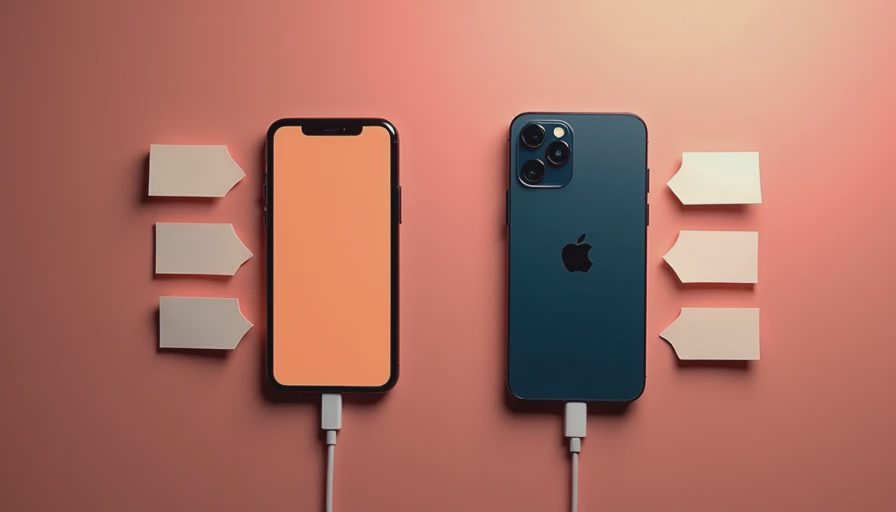
Google’s Android setup process can transfer text messages to new phone devices during initial setup. The exact screens differ among Samsung Galaxy, Google Pixel, Motorola, and other phones, but the basic flow is similar: connect the phones with a USB-C cable or choose a wireless option, select messages, and let the migration run.
Google Backup can restore SMS and MMS messages when you sign in with the same Google Account on the new phone. Samsung Smart Switch is another practical option for Galaxy users. It can move messages, contacts, photos, settings, and some app data from an older Android phone or an iPhone. A cable is usually the better choice for a large history because it reduces reliance on a stable wireless connection.
RCS messages deserve special attention. These newer chat messages can include read receipts, high-resolution media, and typing indicators. They are connected to your messaging app and phone number rather than working exactly like old SMS. Before removing the SIM or eSIM from the old phone, verify that RCS is active on the new one. If messages continue arriving on the old device, turn off chat features there after the new setup is working.
Some manufacturer transfer tools do not copy every protected app conversation. WhatsApp, Signal, and similar services often have their own backup and restore procedures. Treat those as separate tasks rather than assuming the phone migration handled them.
Switching between iPhone and Android
Cross-platform moves are where people most often discover that “transfer text messages to new phone” is not a single universal button. Apple and Google support different message systems, so the process requires more attention to settings and expectations.
When moving from iPhone to Android, use the Android setup tool and a compatible cable if available. The process can copy supported SMS and MMS history, contacts, photos, and calendars. Before completing the move, turn off iMessage on the old iPhone. If you no longer have it, Apple provides an online deregistration process for your phone number. This helps prevent other iPhone users from sending new messages to an inactive iMessage route.
When moving from Android to iPhone, Apple’s Move to iOS app can transfer supported messages during iPhone setup. Install it on the old Android phone, connect both devices to power, and follow the pairing code shown by the iPhone. If the iPhone is already configured, you may need to erase it and restart setup to use the full migration flow. That is another reason to decide on the transfer before customizing the new phone.
No cross-platform tool should be treated as a perfect archive converter. Some group-chat behavior, reactions, media formats, and timestamps may look different after the move. Preserve the old phone until you have checked the conversations that matter most.

What to do when messages are missing
If only recent messages appear, first confirm that the transfer actually completed. Restart both phones, connect the new device to power and Wi-Fi, and give cloud synchronization time to finish. A large iCloud or Google backup can continue restoring in the background while the phone looks ready.
If photos are missing but text is present, inspect cloud storage and the original conversation. Attachments may not have downloaded, or the transfer tool may have skipped unsupported file types. Check whether the new phone has enough free space before trying again.
For an iPhone, confirm the same Apple Account is signed in and that Messages in iCloud is enabled. For Android, confirm the same Google Account and messaging app are being used. Samsung owners should check Smart Switch results rather than relying only on Google Backup. If the message history is business-critical, make an encrypted computer backup of the old phone before repeating any migration.
A calmer final checklist
Before wiping the old device, send and receive a test message. Open an old family thread, a work conversation, and one thread containing photos. Check group chats, pinned messages, search, and notification settings. Confirm that your phone number is active for iMessage or RCS, depending on the platform.
Then review account security. Remove the old phone from trusted-device lists only after the new phone can receive verification codes. Sign out of the old device, remove its SIM or eSIM, and complete a factory reset before selling or recycling it. A reset protects your data; it does not replace a backup.
The practical lesson is simple: transfer text messages to new phone equipment before you optimize the home screen or install every app. Treat messages as personal records, not disposable clutter. Use the built-in migration tools, keep the old device untouched until verification is complete, and handle encrypted chat apps separately. The feature is easy. Living with the result is the test, and a few deliberate checks make the move far less stressful.