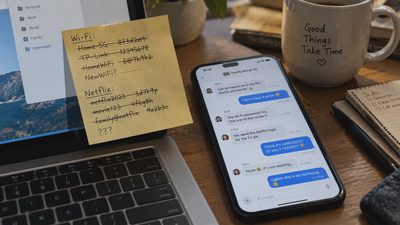

Trying to cancel subscription online should take less than five minutes, but many services scatter the option across account pages, app stores, and customer support forms. The real goal is not simply finding a button. You need to stop future billing, confirm the cancellation, and keep enough evidence to dispute an unwanted charge later. This guide covers the practical process for streaming platforms, software, fitness apps, news sites, and other recurring digital services.
Find out who is billing you
Start with your bank or credit card statement rather than guessing from the app icon. The company you use and the company that processes payment are not always the same. An Apple subscription, for example, is usually managed through your Apple ID. An Android purchase may be managed through Google Play. A subscription started through Amazon, PayPal, Roku, or a cable provider can require cancellation in that separate account.
Look for the merchant name, charge amount, and billing date. Search your email for terms such as “receipt,” “renewal,” “membership,” or “subscription.” If you share finances with a partner, check whether another household member opened the account. This step prevents a common mistake: deleting an app while leaving the recurring payment active.
Before you cancel subscription online, sign in through the official website or app-store settings. Avoid links in unexpected emails, especially messages claiming that your payment failed. A fake cancellation page can be a phishing attempt designed to collect your password or card details.
Use the correct cancellation path
For a website subscription, open the account menu and look for Billing, Membership, Plan, Manage Subscription, or Account Settings. The cancellation control may appear under a smaller link such as “Change plan” or “View options.” Read each screen carefully. Some services show a discount offer before displaying the final cancellation button.
For an iPhone or iPad, open Settings, select your Apple Account, choose Subscriptions, and select the service. On Android, open Google Play, tap your profile icon, select Payments & subscriptions, and open Subscriptions. Uninstalling the app does not cancel an app-store subscription.
If you subscribed through a streaming device or television provider, check that provider’s account portal. A Netflix-style service purchased directly is different from one billed through a third-party bundle. When the account page says you must contact support, use the company’s official help center and ask for written confirmation.

Cancel subscription online and save proof
When the final cancellation option appears, take a screenshot showing the confirmation message, end date, and account email. Save the confirmation email as a PDF or move it to a folder named “Canceled subscriptions.” Record the date, time, service name, and last four digits of the payment method if available.
Do not assume that losing access immediately means the process failed. Many services let you continue using a paid plan until the end of the current billing period. Others stop access as soon as cancellation is submitted. The important detail is whether the page says recurring billing is off or the plan will not renew.
A useful confirmation should include language such as “canceled,” “scheduled to end,” or “auto-renewal disabled.” A discount offer, pause option, or downgraded plan is not the same thing. If you want the account closed entirely, that is a separate request from stopping payment. Download files, export data, and remove stored payment information only after you have confirmed what the service needs to retain.
What to do when the button is missing
Some services make cancellation harder than enrollment. Try the desktop website if the mobile app does not show account controls. Switch browsers, disable a content blocker temporarily, or check whether you are signed into the correct email address. Business and family plans often hide billing controls from members who are not the account owner.
If the service routes you to chat, keep the conversation focused: “Please cancel my recurring subscription effective today and email confirmation.” Do not accept a pause unless that is genuinely what you want. Ask the representative to state the final billing date in writing. Save the transcript, ticket number, and representative’s name if provided.
If a company requires a phone call, make the request clearly and note the call time. Follow up by email so there is a written record. You can cancel subscription online when possible, but a support interaction can still create useful evidence if the website is confusing.
Avoid the most common billing traps
The biggest trap is waiting until the renewal day. Some companies process charges in advance, and support may not reverse a completed renewal. Set a calendar reminder three to five days before the next billing date, particularly for annual plans that can cost $60 to $240 in one transaction.
Another trap is confusing a free trial with a canceled account. A trial often converts automatically unless you turn off renewal. Take a screenshot when you cancel, even if the service costs nothing today. Also check whether a promotional price will change after the first month; a $5 introductory plan can become a $15 or $20 monthly charge.
Households should review the same statement for duplicate services. You might have one music plan through a family member, another through a phone bundle, and an unused individual account. A ten-minute review can uncover $20 to $50 in monthly charges without affecting services anyone actually uses.
If the charge appears after cancellation
First compare the charge date with your confirmation. A payment that was already authorized before cancellation may still appear, while a later charge deserves investigation. Check for a second account, a different billing channel, or a renewal under another email address.
Contact the company promptly with your confirmation attached. Ask for a refund and explain that recurring billing was canceled before the disputed charge. Keep the request factual and avoid sending your full card number. If the merchant does not resolve an unauthorized recurring charge, contact your card issuer or bank and ask about its dispute process. Do not rely on replacing a card alone; some merchants can receive updated card details through account-updater services.
You can often cancel subscription online and prevent the next payment, but cancellation does not automatically erase every past charge. Review the merchant’s refund terms, keep copies of all messages, and watch the next statement for another transaction.
Build a low-maintenance subscription routine
Once a month, scan your bank and card statements for recurring charges. Keep a simple note with the service name, price, billing date, and payment source. Add a calendar reminder before annual renewals and free trials. This takes less time than searching through old emails after a surprise charge.
When signing up for a new service, ask whether it offers monthly billing, an annual discount, family sharing, or a downloadable export of your data. Avoid storing a card with services you use only once. A virtual card number can add a useful layer of control where your bank supports it, but it is not a substitute for canceling the subscription itself.
Technology should reduce friction, not create a monthly scavenger hunt. If you cancel subscription online with a confirmation, a saved record, and a follow-up statement check, you have turned a vague chore into a repeatable household system. Make the technology earn its place, including the technology that handles your payments.