
Most family Wi-Fi problems are not solved by buying the newest box with the biggest marketing numbers. They are solved by putting the right number of access points in the right places, and by stopping the ISP gateway from competing with your own equipment.
If your house has dead zones in the bedrooms, video calls freeze when someone is on a call downstairs, or the kids' tablets keep dropping, you don't need a networking degree. You need a calm, low-maintenance home Wi-Fi setup that works for real life.
What Actually Matters for Family Wi-Fi
Ignore the marketing charts for a moment. For a household with phones, laptops, streaming sticks, a couple of smart speakers, and maybe a work-from-home desk, five things decide whether the network feels calm or constantly annoying:
Coverage, not peak speed. Dead zones in rooms people actually use matter more than a lab speed score.
One network name. Devices should move between access points without you noticing. Separate "2.4 GHz" and "5 GHz" names create friction.
Setup and management time. If the app is confusing or the system needs weekly reboots, it has already failed a non-technical household.
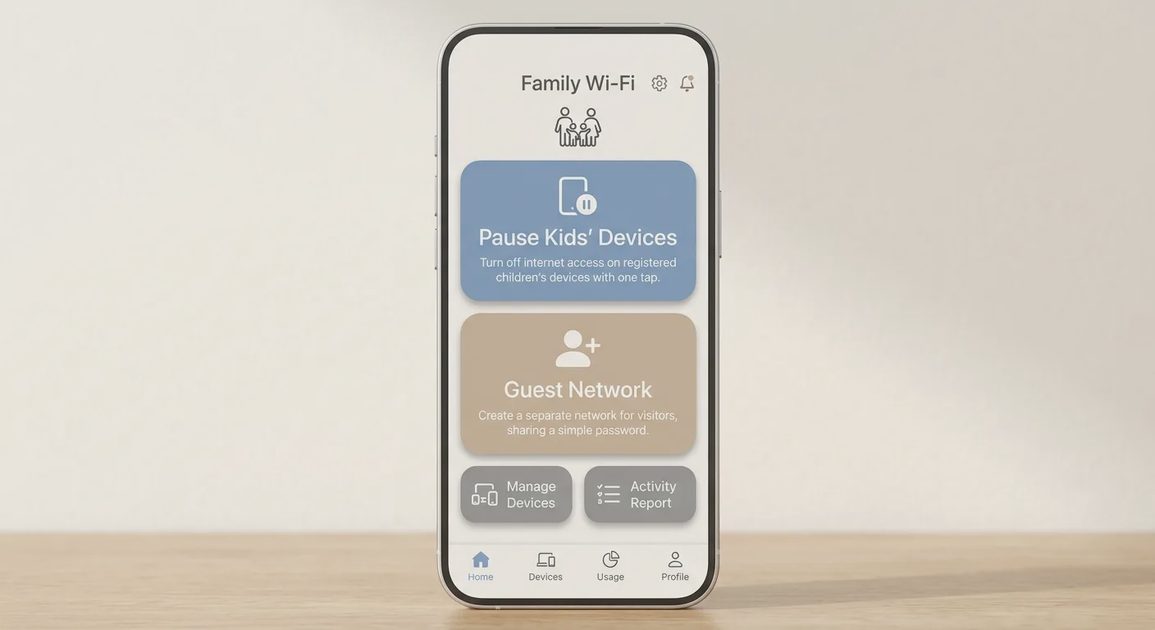
Simple parental controls and a guest network. You should be able to pause the kids' internet at bedtime from your phone, without logging into a complicated admin page.
Total cost of ownership. Hardware price, plus any required subscription, plus the time you'll spend fixing it later.
A system that looks impressive on a spec sheet but needs constant babysitting doesn't earn its place.
Step Zero: Fix the ISP Gateway Before You Buy Anything
Many households have an ISP-provided modem/router combo that also broadcasts its own Wi-Fi. When you add a second router or mesh system behind it, the two can end up running separate networks ("double NAT"), which causes dropped connections and confusing behavior.
The usual fix is one of two options:
Put the ISP gateway in bridge mode, so your own router or mesh system does the routing.
Or turn off the gateway's Wi-Fi and use it only as a modem.
Not every ISP gateway supports bridge mode, and the steps differ by provider, so check your ISP's support pages first. This one change fixes a surprising number of "my new Wi-Fi is worse" complaints.
Do You Even Need Mesh? Three Honest Questions
Before you buy anything, answer these:
Is your home large, multi-story, or built with thick walls?
Do you have rooms where video calls or streaming regularly stutter or drop?
Is your current router sitting in a corner, basement, or closet?
If the first two answers are "no" and the third is "yes," start by moving the existing router to a more central spot, ideally up off the floor and away from metal objects and thick walls. Many households find the problem was placement, not hardware.
Mesh becomes the sensible choice when a single well-placed router still leaves dead zones. A mesh system uses several nodes that talk to each other and present one network name. Done right, devices switch between nodes without you noticing.
The Sensible Three-Tier Setup
Tier 1: Apartments and Smaller Homes
A single modern router placed near the center of the living space is usually enough. Look for a clean app, automatic updates, and basic parental controls. You don't need mesh nodes that mostly sit idle.
Tier 2: Typical Family Homes (One or Two Stories)
This is where a two- or three-node mesh system tends to pay for itself. Prioritize easy setup and reliable roaming over the highest speed rating. Choose a two-pack for the smaller end of this range and a three-pack for longer or multi-story layouts.
Prefer a system that supports wired backhaul (Ethernet between nodes) if you already have Ethernet runs or can add them. It keeps the wireless bands freer for your devices.
Tier 3: Larger Homes, Thick Walls, or Heavy Device Loads
Go to three or more nodes, and consider multi-gig ports if your internet plan is very fast. Strongly consider wiring at least some nodes with Ethernet. At this size, wireless-only mesh starts to show its limits when many people are online at once.
A Note on Specific Products
I'm not ranking specific mesh systems in this guide, because I haven't run a side-by-side test for it. Features, pricing, and subscription requirements change often. Before you buy any system, check its current reviews and confirm which parental-control and security features are free and which require a paid plan.
Setup That Takes Under 20 Minutes
A good family system shouldn't need a manual or a YouTube marathon. The typical flow:
Plug the main node into your modem (or into the ISP gateway in bridge mode, as described above).
Download the manufacturer's app and follow the prompts.
Create a single network name and a strong password.
Place additional nodes roughly halfway between the main unit and the problem areas, elevated and in the open, not behind furniture or inside cabinets.
Let the system finish its automatic optimization.
Connect a few devices and walk around the house to check coverage.
If active setup takes more than about 20 to 25 minutes, the system is probably more complex than a non-technical household needs.
Wi-Fi Node Placement: Rules That Matter More Than Specs
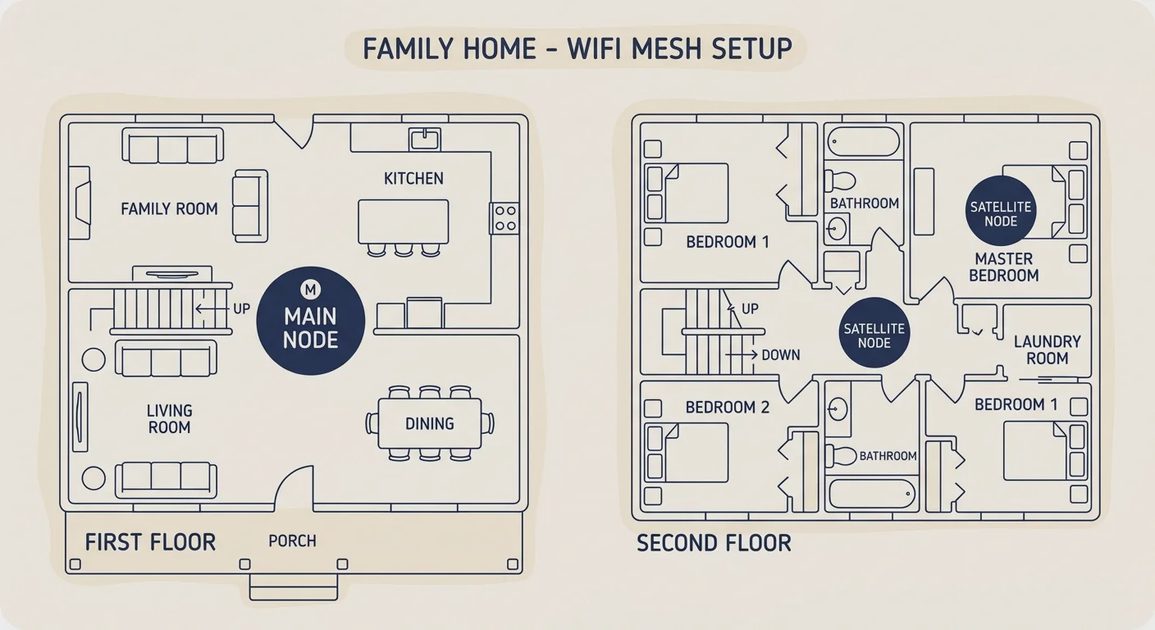
Put the main node as close to the center of the house as practical, ideally on the main living floor.
Keep nodes off the floor and away from large metal objects, microwaves, and thick concrete or brick walls.
As a rough rule of thumb, plan for one node per floor in a typical two-story home, or one every 30 to 40 feet of clear path. Walls will shorten that distance.
If you can run Ethernet between nodes, do it. Wired backhaul is one of the highest-return improvements available.
One trade-off to know: your main node has to connect to the modem, and the modem is often in an inconvenient corner. If the modem location is the problem, the fix may be an Ethernet run or asking your ISP about moving the connection point, not a fancier router.
These placement decisions often improve real-world performance more than jumping from one Wi-Fi generation to the next.
Parental Controls, Guest Network, and Basic Security
For families, these should be usable without a networking background:
Pause internet for specific devices or profiles from the phone app.
A separate guest network, so visitors don't get access to your main devices.
Automatic security updates (most modern mesh systems handle this).
WPA3 support where available, with a fallback for older devices.
A unique admin password for the router or mesh app, not the default.
You don't need enterprise-grade firewall rules. You need to be able to say "kids' devices offline after 9 p.m." without drama.
What Family Wi-Fi Costs and What You Can Skip
Prices change often, so treat any range as a starting point and check current listings. A solid two- or three-node system for a typical family home usually sits in the low-to-mid hundreds of dollars. Higher-priced flagship kits exist, but many households never use the extra performance.
What you can usually skip:
The most expensive newest-generation kit, if your internet plan is modest and most of your devices are older. Pay for the newest Wi-Fi standard only if you have the internet speed and devices to use it.
Any system that requires a paid subscription for basic parental controls or security.
Extra nodes "just in case." Start with the minimum that covers your dead zones and add more later if needed.
A cheaper path: if budget is tight and the house is smaller, one good router with careful placement still solves many problems. A range extender can help in a single stubborn spot, but extenders often reduce speed on the extended connection, so treat them as a patch, not a plan. Mesh is not mandatory.
Who This Is For, and Who Can Skip It
This approach is for you if:
You want reliable Wi-Fi in the rooms people actually use.
You prefer a system that mostly manages itself after setup.
You have kids or frequent guests and want simple controls.
You value lower maintenance over maximum theoretical speed.
You can skip or simplify if:
Your current setup already covers every room you care about with no drops.
You live in a small open-plan apartment and the router is already well placed.
You enjoy deep networking configuration and want full control over every setting.
Frequently Asked Questions
How many mesh nodes does a family home need?
There's no fixed number. Start with the minimum that covers your dead zones, often one node per floor in a typical two-story home, and add more only if coverage gaps remain.
Is a mesh system better than a single router?
Not always. In a smaller or open-plan home, a well-placed single router can be enough. Mesh helps when walls, floors, or layout leave dead zones a single router can't reach.
What is wired backhaul, and do I need it?
It means connecting mesh nodes to each other with Ethernet instead of wirelessly. It's not required, but it often improves performance in larger homes and under heavy use.
Where should I put my router?
Near the center of the home, elevated, and in the open, away from metal objects and thick walls.
Do I need Wi-Fi 7?
Only if your internet plan and devices can take advantage of it. For many families, coverage and placement matter more than the newest standard.
Conclusion: Make the Technology Earn Its Place
A better home Wi-Fi setup for a family isn't the one with the most impressive box art. It's the one that quietly keeps video calls stable, lets the kids stream without constant buffering complaints, and doesn't turn you into the household network administrator.
Start with an honest look at your actual dead zones and house size. Fix the ISP gateway. Choose the simplest system that covers those zones. Place the nodes thoughtfully. Then leave it alone.
That is the sensible stack.