A Comfortable, Repairable, and Sensible Home Office Setup
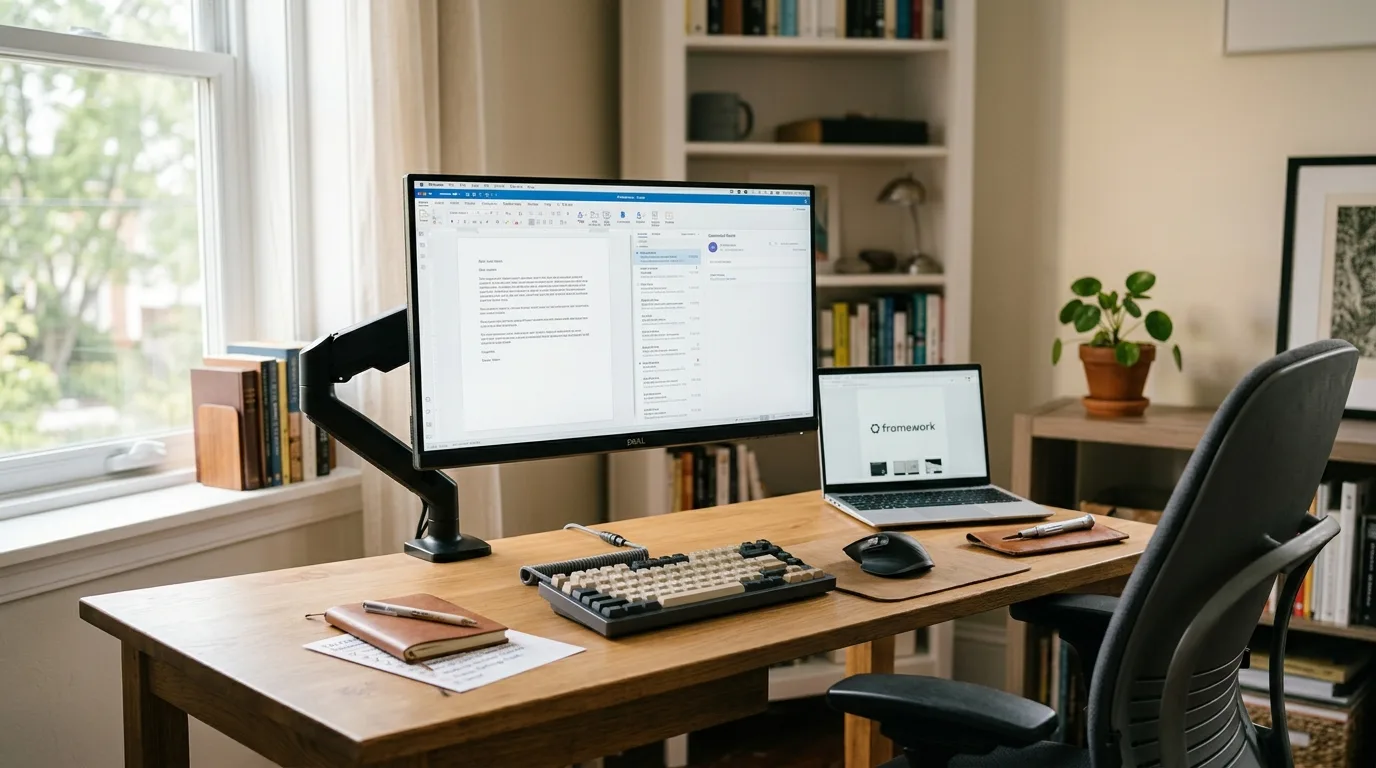
A good home office doesn't need to look like a technology showroom.
It needs to be comfortable enough for a full workday, reliable enough that you can get things done, and simple enough that a broken cable or aging computer doesn't force you to rebuild everything.
Yet home office advice often starts with shopping.
Buy a larger monitor. Upgrade your laptop. Add a premium keyboard. Replace your desk. Install another productivity app.
Some of those purchases might help. But buying more equipment isn't the same as creating a better workspace.
A sensible home office setup starts with the work you actually do, the equipment you already own, and the problems that genuinely interfere with your day.
The goal is straightforward: build a workspace that feels good to use, costs a reasonable amount to maintain, and can adapt as your needs change.
Start With Your Work, Not a Shopping List
Before choosing equipment, think about an ordinary workday.
Do you spend most of your time writing, attending video meetings, working with spreadsheets, editing photographs, or using specialized software?
Do you work at the same desk every day, or move between rooms?
Are you sharing the space with family members?
These questions matter more than the latest product recommendations.
Someone who writes documents and attends occasional meetings has different requirements from someone editing large video projects.
A person who works at a dedicated desk may benefit from an external monitor and keyboard. Someone who frequently changes locations may value a lightweight laptop and a simple charging setup instead.
Start by identifying the three biggest problems with your current workspace.
Perhaps your screen sits too low. Maybe your chair becomes uncomfortable after an hour. Your computer might struggle with ordinary tasks, or your Wi-Fi may be unreliable during meetings.
Fix those problems before buying anything else.
A better home office is built around removing friction, not accumulating equipment.
Comfort Comes Before Computer Specifications
A fast computer won't compensate for a desk that makes your shoulders ache.
Comfort deserves attention before processing power because it affects nearly every minute spent working.
Get the screen position right
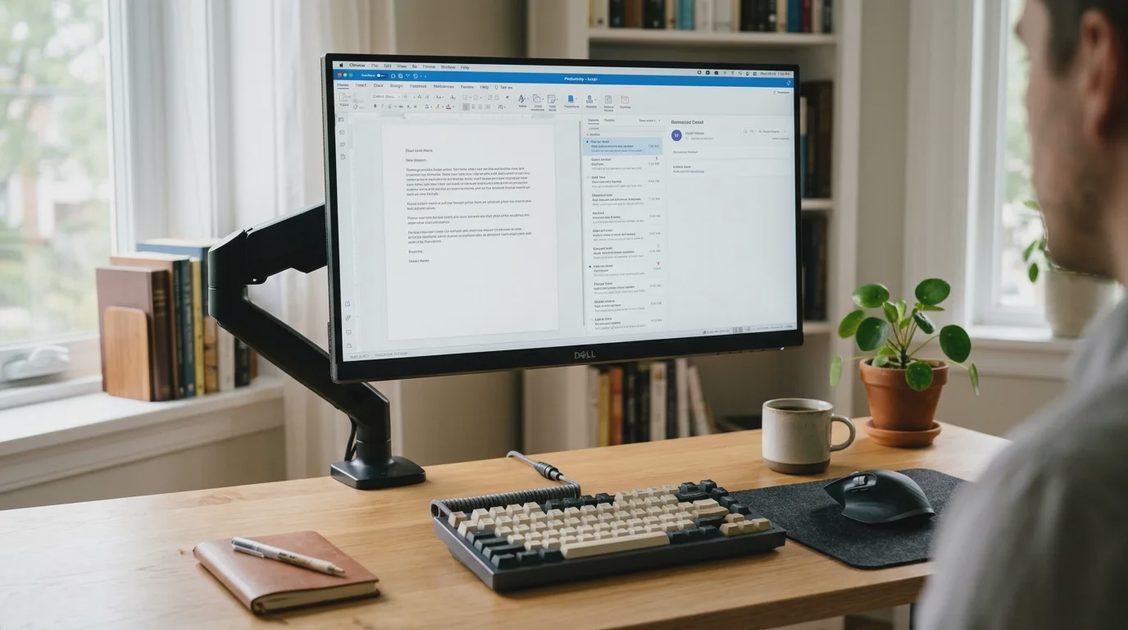
For a typical desktop workstation, position your monitor roughly an arm's length away, then adjust for screen size, vision, and comfortable reading.
The top of the visible screen should generally be around eye level or slightly below, with your gaze naturally directed a little downward.
These are starting points, not rigid measurements. Bifocal users and people with specific visual needs may prefer different positions.
If you work primarily on a laptop, consider raising it on a stable stand and using an external keyboard and mouse.
This separates screen position from typing position, allowing both to be adjusted more comfortably.
Make your chair and desk work together
An expensive ergonomic chair isn't automatically comfortable for everyone.
Look for a chair that supports your back, allows your feet to rest securely, and lets you work without holding your shoulders up or reaching awkwardly.
Your keyboard and mouse should be close enough that your arms can remain relaxed.
If your desk is too high, a suitable footrest and chair adjustment may help. If the setup still forces an uncomfortable posture, the desk itself may need attention.
Adjustability matters because bodies, tasks, and preferences differ.
Lighting is part of ergonomics
Poor lighting can make an otherwise good workspace frustrating.
Place your screen where windows and lamps don't create distracting reflections. Use adjustable task lighting when you need to read documents or work with physical materials.
You don't need elaborate decorative lighting.
A well-positioned desk lamp and sensible use of daylight may be enough.
Movement matters too
Even a carefully adjusted workstation isn't a reason to remain in one position all day.
Change posture, stand up periodically, and take short movement breaks when practical.
A comfortable workspace supports movement rather than encouraging you to sit perfectly still.
Choosing the Best Home Office Computer for Your Needs
The best computer for home office use depends on workload, software requirements, budget, and how long you expect to keep the machine.
There isn't one model that makes sense for everyone.
Before buying, determine whether your current computer actually needs replacing.
If it still runs supported software reliably, handles your daily workload, and has no significant hardware problems, keeping it may be the most sensible choice.
If performance is consistently inadequate, repairs are becoming impractical, or essential software and security updates are no longer supported, replacement becomes easier to justify.
Laptop or desktop?
A laptop is usually the more flexible choice.
It can move between rooms, travel with you, and serve as both a portable computer and a desk-based workstation when connected to an external display.
A desktop may make more sense when the computer rarely moves, you want more flexible hardware configurations, or you prioritize serviceability.
However, not all desktops are equally upgradeable, and not all laptops are difficult to repair.
The design of the specific machine matters.
Consideration | Laptop | Desktop |
|---|---|---|
Portability | Strong advantage | Usually stays in one location |
Desk space | Compact | Depends on case and peripherals |
Screen flexibility | Built-in display plus optional external monitor | External monitor required |
Repairability | Varies considerably by model | Often more accessible, especially standard-tower designs |
Upgrade options | Frequently limited | Often broader, but model-dependent |
Power and cables | Typically simpler for mobile use | More separate components |
Best fit | Flexible or hybrid work | Dedicated stationary workspace |
Neither format is automatically superior.
Choose based on how you work rather than the assumption that one category is inherently more professional.
How much performance do you really need?
For routine office work, prioritize a responsive system with sufficient memory, solid-state storage, reliable connectivity, and a processor capable of handling your applications comfortably.
A reasonable starting point for many new general-purpose office computers is 16 GB of RAM and 512 GB of SSD storage, but these are planning guidelines, not universal requirements.
Lighter workloads may need less. Large spreadsheets, development tools, creative software, and heavy multitasking may justify more.
Check the requirements of your actual applications before choosing specifications.
Also consider whether memory and storage can be upgraded later.
Buying a machine with adequate performance today and a realistic service life can be more valuable than paying for specifications you'll never use.
Repairability Should Be Part of the Buying Decision
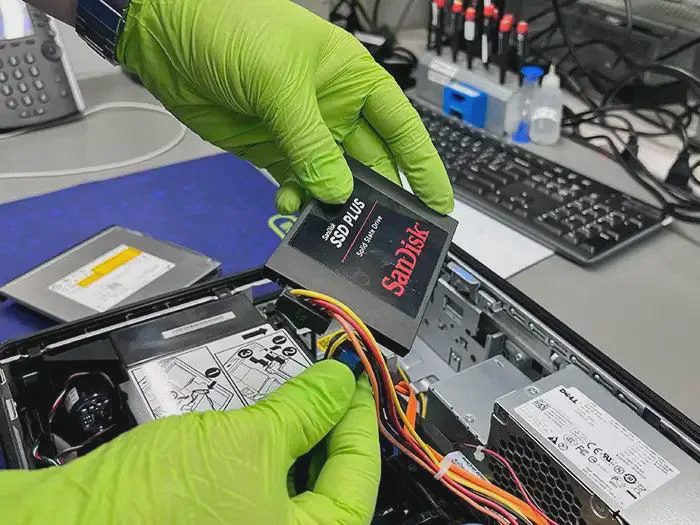
Repairability rarely receives the attention it deserves in home office buying guides.
But a computer that is difficult or expensive to repair may become a poor long-term investment.
A failed battery, damaged charging port, or worn keyboard shouldn't automatically mean replacing an otherwise functional computer.
When evaluating a home office computer, look beyond the processor and screen.
Ask whether replacement parts are available, whether repairs can be performed by qualified independent technicians, and whether the manufacturer provides service information.
What makes a computer more repairable?
Useful characteristics include:
Accessible or replaceable storage
Replaceable batteries where the design permits
Available replacement keyboards, fans, and charging components
Published repair documentation
Reasonable access to spare parts
Standard connections for external peripherals
A clear software-support policy
Not every machine will offer all of these features.
Some thin laptops prioritize compact construction over service access. Certain components may be soldered or integrated into larger assemblies.
That doesn't automatically make the product unsuitable.
It does mean the trade-off should be understood before purchase.
Repairability also applies to accessories
A sensible workspace benefits from equipment that can be replaced individually.
A separate keyboard can be replaced without replacing the computer. A standard monitor connection makes it easier to change displays. A detachable cable is generally more convenient to replace than a permanently attached one.
Avoid unnecessary proprietary accessories when reliable standard alternatives meet your needs.
The principle is simple:
A small failure should remain a small problem whenever possible.
Build Around a Few Dependable Accessories
A home office doesn't need an enormous accessory collection.
Start with equipment that solves a specific daily problem.
Monitor
An external monitor can improve comfort and provide useful screen space, particularly when working with multiple documents.
For many desk setups, a good-quality 24- to 27-inch display is a practical category to evaluate.
Resolution, text clarity, adjustability, connectivity, and available desk space matter more than size alone.
A larger monitor isn't always better if it forces uncomfortable viewing distances or awkward head movements.
Keyboard and mouse
Choose input devices that feel comfortable during the tasks you perform most often.
An expensive mechanical keyboard isn't necessary for productive work. Neither is a specialized mouse.
Prioritize reliable connections, comfortable positioning, and controls that don't force awkward wrist or shoulder movements.
Webcam and microphone
For frequent video meetings, clear audio often contributes more to communication than an elaborate camera setup.
Before buying a separate webcam, check whether your existing laptop camera performs adequately with better lighting.
A basic headset or microphone may solve more problems than a premium video upgrade.
Docking station or USB hub
A docking station can make sense when you regularly connect a laptop to several peripherals.
But docks introduce compatibility questions involving power delivery, display support, and connection standards.
Check the specifications of your computer and connected devices before buying.
If you only need one additional USB port, a simpler hub may be sufficient.
Don't Overlook the Home Network
A comfortable desk is less useful when video calls repeatedly disconnect.
Before replacing your computer because online work feels slow, check whether the problem is actually your internet connection or home network.
Test performance near the router and at your desk. Compare wired and wireless connections when possible.
Look for weak signal areas, network congestion, or equipment placement problems.
A better router may help in some circumstances, but it isn't always the first answer.
Sometimes moving an existing router, reducing interference, or using a wired connection solves the problem more effectively.
The important distinction is between a computer-performance problem and a network-performance problem.
Buying the wrong replacement won't fix either.
Make Cable Management Practical, Not Decorative
Cable management is often presented as an aesthetic project.
It can be useful, but its real purpose is simpler: make the workspace easier to clean, maintain, and troubleshoot.
Keep power cables secure and away from areas where they can be damaged or tripped over.
Use removable cable ties or organizers rather than creating a permanent bundle that's difficult to change.
Label connections when several similar cables are involved.
Leave enough slack for adjustable desks and monitor arms to move safely.
Avoid overloading outlets or power strips, and follow the electrical ratings and safety instructions for your equipment.
A tidy desk is pleasant.
A desk where you can replace a cable in two minutes is more useful.
Think About the Total Cost of Ownership
The purchase price is only one part of the cost of a home office setup.
Over time, you may pay for accessories, repairs, replacement batteries, software subscriptions, storage services, and additional equipment.
Consider two hypothetical options.
One computer costs less initially but has limited repair options and requires an expensive proprietary dock.
Another costs more upfront but uses standard connections and has accessible replacement parts.
The second might be better value over several years.
Or it might not, depending on actual repair costs, reliability, and your needs.
The important thing is to compare the full setup rather than individual price tags.
Before purchasing, ask:
What problem does this solve?
What else will I need to buy?
What happens when something breaks?
Can I keep using it as my needs change?
Would improving my existing setup solve the same problem?
Those questions are more useful than chasing the latest specifications.
Three Sensible Home Office Setup Approaches
Different people need different levels of equipment.
The following are practical starting points rather than fixed shopping lists.
1. The essential home office
Best for writing, email, online meetings, and routine administrative work.
Use a reliable existing laptop or desktop, a comfortable chair, appropriate lighting, and a stable internet connection.
Add an external keyboard or monitor only if it meaningfully improves comfort or productivity.
This approach minimizes spending and maintenance.
2. The balanced everyday workstation
Best for people who work at a desk regularly and switch between several applications.
A capable laptop or desktop, adjustable external monitor, separate keyboard and mouse, and comfortable seating provide a flexible foundation.
A simple dock may be worthwhile if you frequently connect and disconnect a laptop.
This is a reasonable middle ground for many remote workers.
3. The specialized workstation
Best for demanding creative, technical, or professional workloads.
Start with the requirements of the software you actually use.
You may need more memory, stronger graphics performance, additional storage, specialized displays, or specific peripherals.
Prioritize compatibility, serviceability, and reliability over appearance.
Specialized equipment is worthwhile when the workload genuinely benefits from it.
It shouldn't be the default recommendation for everyone.
A Home Office Setup Checklist Before You Buy Anything
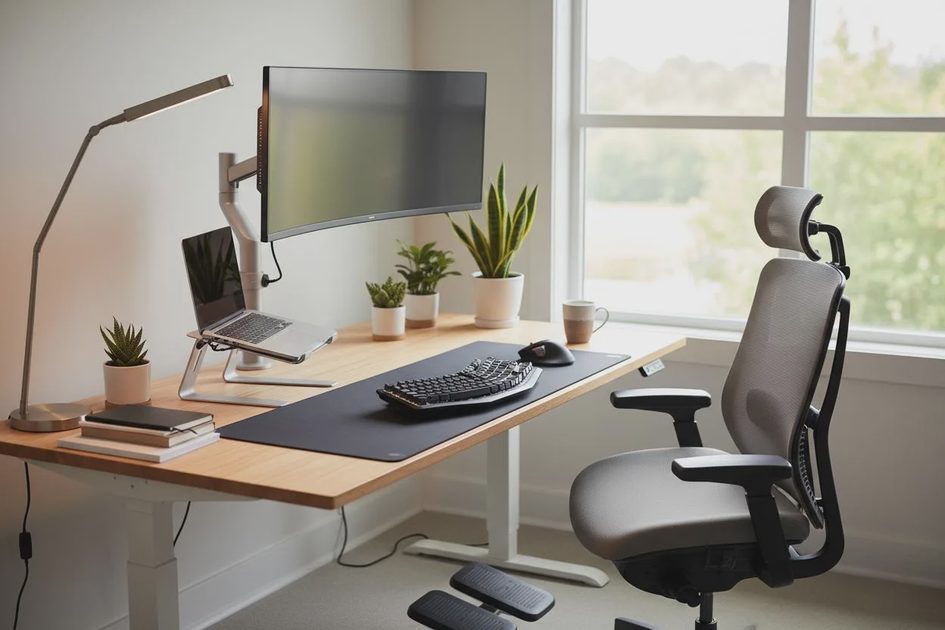
Use this checklist to identify improvements worth making before replacing equipment.
Check comfort. Can you work without persistent awkward reaching, poor screen positioning, or avoidable discomfort?
Evaluate your current computer. Does it handle your daily applications reliably and receive necessary security updates?
Review your monitor setup. Is the display readable, properly positioned, and appropriate for your work?
Test your internet connection. Are connectivity problems affecting calls, uploads, or routine tasks?
Inspect your cables and accessories. Are they safe, accessible, and easy to replace?
Identify repair options. Can important equipment be serviced, and are replacement parts reasonably available?
Review recurring costs. Are you paying for unnecessary software or services?
Prioritize one improvement. Choose the change most likely to reduce daily friction.
You don't need to complete everything immediately.
A sensible home office is built through useful improvements, not one enormous shopping trip.
Frequently Asked Questions
What is the best computer for home office use?
For many people, a reliable laptop or desktop with sufficient memory, SSD storage, current software support, and the connections required for their peripherals is a sensible choice. The best computer depends on your applications, mobility needs, budget, and repair preferences.
Is a laptop or desktop better for working from home?
A laptop offers portability and flexibility. A desktop can provide broader hardware and repair options, depending on its design. Choose a laptop if you move between work locations; consider a desktop if your workspace is permanent and serviceability is a priority.
Do I need two monitors for a home office?
Not necessarily. A single appropriately sized and positioned monitor may be sufficient. A second display can help with certain workflows, but it also requires desk space and may introduce additional visual distractions.
How can I improve my home office without buying a new computer?
Start with screen positioning, seating, lighting, keyboard and mouse placement, network reliability, and reducing unnecessary software. These changes may improve everyday work without replacing functioning hardware.
What should I look for in a repairable home office computer?
Look for available replacement parts, repair documentation, service access, upgrade options, standard ports, and a clear software-support policy. Evaluate the specific model rather than assuming all laptops or desktops are equally repairable.
The Best Home Office Is the One You Can Keep Using
A sensible home office isn't defined by how much equipment it contains.
It's defined by how comfortably, reliably, and efficiently that equipment supports your work.
Start with your existing devices.
Fix uncomfortable positioning. Improve the lighting. Remove unnecessary complexity. Choose accessories that solve actual problems.
When replacement becomes necessary, consider performance, repairability, compatibility, and long-term cost together.
You don't need a perfect desk or the most powerful computer available.
You need a workspace that works on an ordinary Tuesday, can be maintained without unnecessary expense, and doesn't demand constant attention.
Buy what helps. Repair what makes sense. Keep what already works.