

Three apps can sound like a perfectly reasonable productivity setup.
One captures ideas. Another tracks tasks. A third manages project notes and deadlines.
Each app does its job. The trouble starts when the work between them becomes another job of its own.
You capture something in one place, copy it into another, and then update a third system so you can remember what happened. A simple task now involves three interfaces, multiple notifications, and several opportunities to lose track of information.
This is the problem worth solving when evaluating workflow apps.
The question isn't whether one app can technically replace three. It's whether one well-designed workflow can remove unnecessary steps without sacrificing the capabilities you actually need.
To explore that decision, consider a practical example: consolidating a notes app, a task manager, and a project tracker into one consistent workflow.
This is an illustrative setup rather than a claimed firsthand experiment. The method is designed to help you run the comparison with your own tools and judge the results.
The Real Problem Wasn't the Number of Apps
Having several productivity apps isn't inherently bad.
A calendar, a notes app, and a task manager can work together perfectly well when each has a clear responsibility.
The problem is duplication.
Imagine a common sequence:
You capture an idea in a notes app.
You turn the idea into a task in another app.
You add the task to a project tracker.
You update its status in the tracker.
You return to the task manager to mark it complete.
None of these steps is difficult.
But some of them exist only because the information lives in separate systems.
That is the difference between a useful collection of tools and an unnecessarily complicated productivity workflow.
Before replacing any software, map the work you actually perform.
Where does information enter the system? Where are decisions made? Where is progress tracked? And how often do you copy or update the same information in more than one place?
Those handoffs are where consolidation may help.
The Three-App Workflow: Capture, Plan, and Track
For this example, assume three applications perform distinct but overlapping jobs.
App | Primary purpose | Potential friction |
|---|---|---|
Notes app | Capture ideas and information | Action items remain buried in notes |
Task manager | Track individual actions | Tasks lose their original context |
Project tracker | Organize deadlines and progress | Status updates duplicate task-manager work |
Each tool has legitimate value.
The notes app is flexible. The task manager makes next actions visible. The project tracker provides a broader view.
The difficulty appears when maintaining the connections between them takes more effort than completing the work itself.
What a successful replacement needs to preserve
Consolidation should not mean discarding useful capabilities simply to reduce the app count.
A replacement workflow needs to answer four questions:
Can I capture information quickly?
Can I turn information into a clear next action?
Can I see what matters today?
Can I track progress without updating multiple places?
If a simpler setup cannot do those things reliably, it may not be an improvement.
This is an important distinction when comparing the best workflow apps. A tool with the longest feature list is not necessarily the best tool for a particular person.
The better choice is the one that supports the required work with the least ongoing friction.
Building One Workflow Instead of Managing Three Apps
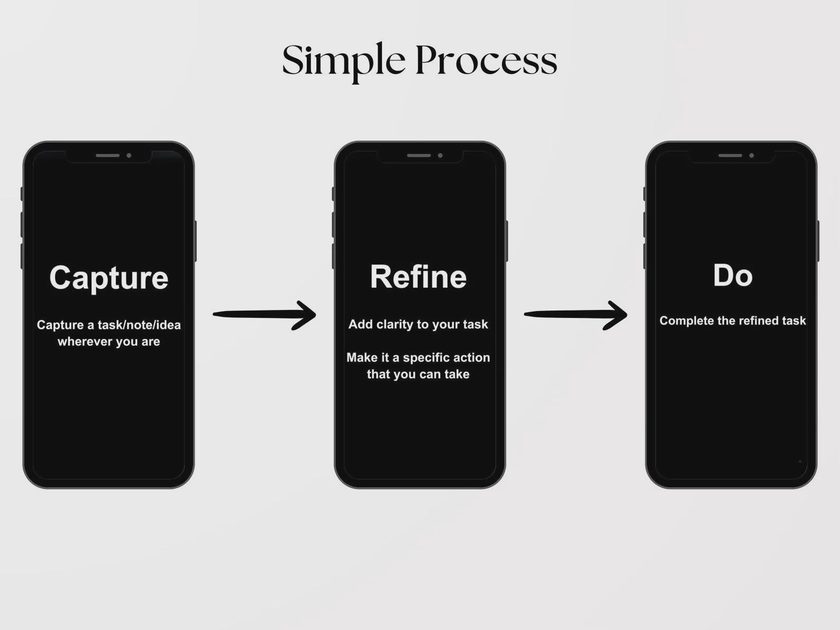
The proposed replacement is a single sequence:
Capture → Clarify → Act → Review
Rather than treating notes, tasks, and projects as separate destinations, the workflow gives every new item a predictable path.
1. Capture everything in one inbox
Start with a single place for incoming information.
It might be an inbox inside an existing task manager, a notes application with basic task support, or another tool you already use.
The important requirement is fast capture.
A useful inbox should make it easy to save an idea, reminder, meeting note, or request without immediately deciding how to organize it.
Avoid creating multiple capture locations unless they serve genuinely different needs.
2. Clarify what each item means
An inbox is useful only if information eventually moves out of it.
During a short review, decide whether each item is:
An actionable task
Reference information
Part of an active project
Something to schedule
Something to discard
For actionable items, write down the next concrete step.
"Website redesign" is a project.
"Send the designer the revised homepage notes" is an action.
This distinction makes the workflow more useful without requiring a complicated organizational structure.
3. Work from one trusted task view
Once actions have been clarified, they should appear in one dependable place.
That could be a Today view, a short priority list, or a project-based task board.
The exact interface matters less than its reliability.
You should not need to check three different applications to discover what needs attention.
At the same time, avoid turning the task list into an elaborate dashboard that requires constant maintenance.
A simple list of clearly defined next actions is often enough.
4. Review the system regularly
A consolidated workflow still needs maintenance.
New information accumulates. Priorities change. Some tasks become irrelevant.
A short recurring review can keep the system trustworthy.
Check the inbox, update active projects, remove obsolete tasks, and identify upcoming commitments.
The goal is not perfect organization.
It's confidence that important work isn't disappearing between applications.
What a Consolidated App Workflow Can Improve
A single app workflow can remove several common sources of friction.
Fewer handoffs. Information no longer needs to be copied between multiple systems as often.
Clearer ownership. There is one obvious location for tasks and active work.
Less duplicated maintenance. You don't have to update the same task status in several places.
Simpler onboarding. A family member or colleague may find one consistent process easier to understand than a collection of overlapping tools.
Potentially lower costs. Consolidation may eliminate an unnecessary paid subscription, although savings depend on the tools and plans involved.
These are potential benefits, not measured outcomes from a completed test.
They should be checked against your own workload.
A workflow that removes ten clicks but creates twenty minutes of extra organization is not an improvement.
What You Might Lose When You Replace Specialized Apps

Consolidation comes with trade-offs.
A dedicated notes application may offer better search, handwriting support, offline access, or document organization than a general-purpose workflow tool.
A specialized task manager may handle recurring tasks, reminders, and prioritization more effectively.
A project tracker may provide collaboration features, reporting, permissions, and dependencies that a simple personal system cannot reproduce.
Moving everything into one application can also create a single point of failure.
If that service becomes unavailable, changes its pricing, or stops meeting your needs, more of your work may be affected.
There are privacy considerations too. Centralizing personal notes, business information, and project records in one service may not be appropriate for every situation.
Before consolidating, check the destination tool's data handling, access controls, export options, and backup arrangements.
Fewer applications can mean less complexity.
But it can also mean greater dependence on one provider.
How to Choose the Best Workflow Apps for Your Needs
There is no universally best workflow app.
The right choice depends on the kind of work you do and the features you cannot reasonably give up.
Rather than beginning with a ranked list of products, start with a short evaluation framework.
Evaluation criterion | What to check |
|---|---|
Capture speed | Can you save a new item without interrupting your work? |
Task management | Can you assign clear actions, dates, and priorities? |
Project visibility | Can you see progress without creating duplicate records? |
Search | Can you retrieve important information quickly? |
Cross-device access | Does the workflow work on the devices you actually use? |
Collaboration | Can the right people access and update shared information? |
Data portability | Can you export your information in a useful format? |
Cost | Does consolidation reduce or increase total expense? |
Maintenance | How much time does the system require to keep working? |
You may discover that an application you already pay for meets most of these requirements.
That is worth investigating before subscribing to something new.
You may also discover that keeping two specialized apps is better than forcing everything into one.
The goal is not to win a contest for the smallest app collection.
It is to build a system that serves your work.
A Practical Way to Test the New Productivity Workflow
A consolidation decision should be reversible until you've established that the new setup works.
Avoid immediately deleting old applications or migrating every project.
Instead, test the proposed workflow with a limited set of ordinary tasks.
Phase 1: Map the existing process
Choose several recurring activities.
For each one, record where the information starts, which applications you open, and where the final result is stored.
Pay particular attention to repeated data entry and unnecessary status updates.
Phase 2: Build a small replacement
Configure the new workflow to handle those same activities.
Use the simplest structure that can support them.
Do not recreate every folder, tag, field, and automation from the old applications unless you have a clear reason.
Phase 3: Run both systems cautiously
For a limited trial, keep the original information available while using the new workflow for selected tasks.
Avoid editing the same records in multiple places unless you have a clear reconciliation method.
Keep important deadlines visible and confirm that reminders still work.
Phase 4: Compare actual friction
At the end of the trial, evaluate the results.
Measure | Before consolidation | After consolidation |
|---|---|---|
Apps opened per routine task | Record actual count | Record actual count |
Repeated information entry | Record occurrences | Record occurrences |
Time spent maintaining the system | Measure or estimate consistently | Measure the same way |
Missed tasks or reminders | Record incidents | Record incidents |
Ease of finding information | Note specific difficulties | Note specific difficulties |
Monthly subscription cost | Calculate actual total | Calculate actual total |
Do not assume that the new workflow is better merely because it uses fewer applications.
If it takes longer, makes information harder to find, or creates missed commitments, revise the design.
Phase 5: Retire old tools carefully
If the new workflow proves reliable, export or back up important information from the old tools.
Check whether cancellation affects access to stored data.
Only then should you consider removing applications or ending subscriptions.
A clean transition is more valuable than a fast one.
When Three Apps Are Better Than One
Sometimes consolidation is the wrong answer.
Keep separate tools when they serve genuinely different purposes and work together without much friction.
A professional who manages complex team projects may need a dedicated project-management platform.
Someone who works extensively with handwritten notes may benefit from a specialized notes application.
A household calendar may be more useful as a shared service than as a feature buried inside a personal productivity app.
There is also a difference between personal and organizational needs.
A workflow that works beautifully for one person may create problems for colleagues who need permissions, reporting, shared history, or standardized processes.
Do not sacrifice reliability or collaboration simply to reduce the number of icons on your home screen.
The Real Test Is What Happens on an Ordinary Tuesday
Productivity systems often look impressive immediately after setup.
Everything is organized. The inbox is empty. The project board is tidy.
That tells you very little about whether the system will remain useful.
The meaningful test comes later, when you're busy, interrupted, and not particularly interested in maintaining your tools.
Can you capture something quickly?
Can you find the next action?
Can you trust the reminders?
Can you return to a project without reconstructing its history?
And can you do all of that without spending unnecessary time managing the system itself?
Those are better indicators of success than the number of apps installed.
Final Verdict: Replace Friction, Not Just Applications
Replacing three apps with one workflow can be a sensible move when the original tools overlap and require repeated manual coordination.
But fewer apps do not automatically produce better work.
A successful consolidation preserves essential capabilities, reduces duplicated effort, and remains understandable when life gets busy.
Start by mapping the work. Build a small replacement. Test it against real tasks. Measure what improves and what becomes harder.
If one workflow handles the job with less effort, keep it.
If two or three specialized tools work better together, keep those instead.
The best productivity workflow is the one you can rely on without constantly thinking about the workflow itself.